
Zwei-Faktor-Authentifizierung
Die Zwei-Faktor-Authentifizierung (“2FA”) ist eine gute Möglichkeit, die Sicherheit eines Kontos zu erhöhen, um die Wahrscheinlichkeit zu verringern, dass eine andere Person es schafft, sich anstelle von Ihnen anzumelden.
Praktisch bedeutet dies, dass ein Kode in einem Authentifikator gespeichert wird (in der Regel Ihr Mobiltelefon) und den Austausch eines Codes mit dem Authentifikator wenn Sie versuchen, sich anzumelden.
Dies bedeutet, dass ein Angreifer beide Ihr Passwort erraten (oder gefunden) haben muss und auf Ihren Authentifikator zugreifen (oder ihn stehlen) muss.
Anforderungen
Note
Diese Listen sind nur Beispiele, sie sind keine Empfehlung von einer bestimmten Software.
Wenn Sie noch keinen haben, müssen Sie sich für einen Authentifikator wählen.
Telefonbasierte Authentifikatoren sind am einfachsten und am weitesten verbreitet, so dass wir davon ausgehen, dass Sie einen auswählen und auf Ihrem Telefon installieren, z. B. Authy, FreeOTP, Google Authenticator, LastPass Authenticator, Microsoft Authenticator, …; password managers also commonly include 2FA support e.g. 1Password, Bitwarden, …
Zur Veranschaulichung werden wir Google Authenticator verwenden (nicht weil er gut ist, sondern weil er weit verbreitet ist).
Einrichten der Zwei-Faktor-Authentifizierung
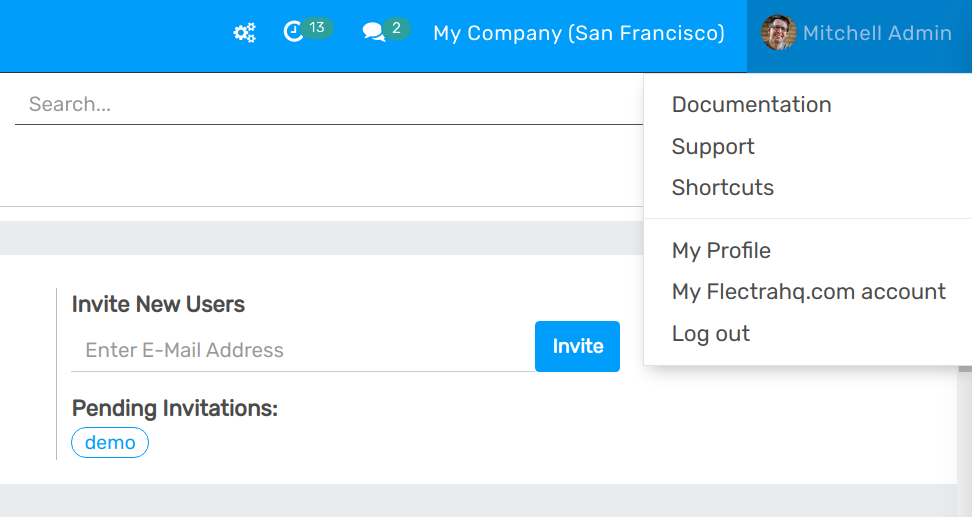
Sobald Sie den Authentifikator Ihrer Wahl haben, gehen Sie zu der openAPPone-Instanz die Sie einrichten möchten 2FA, dann öffnen Sie Preferences (or My Profile):
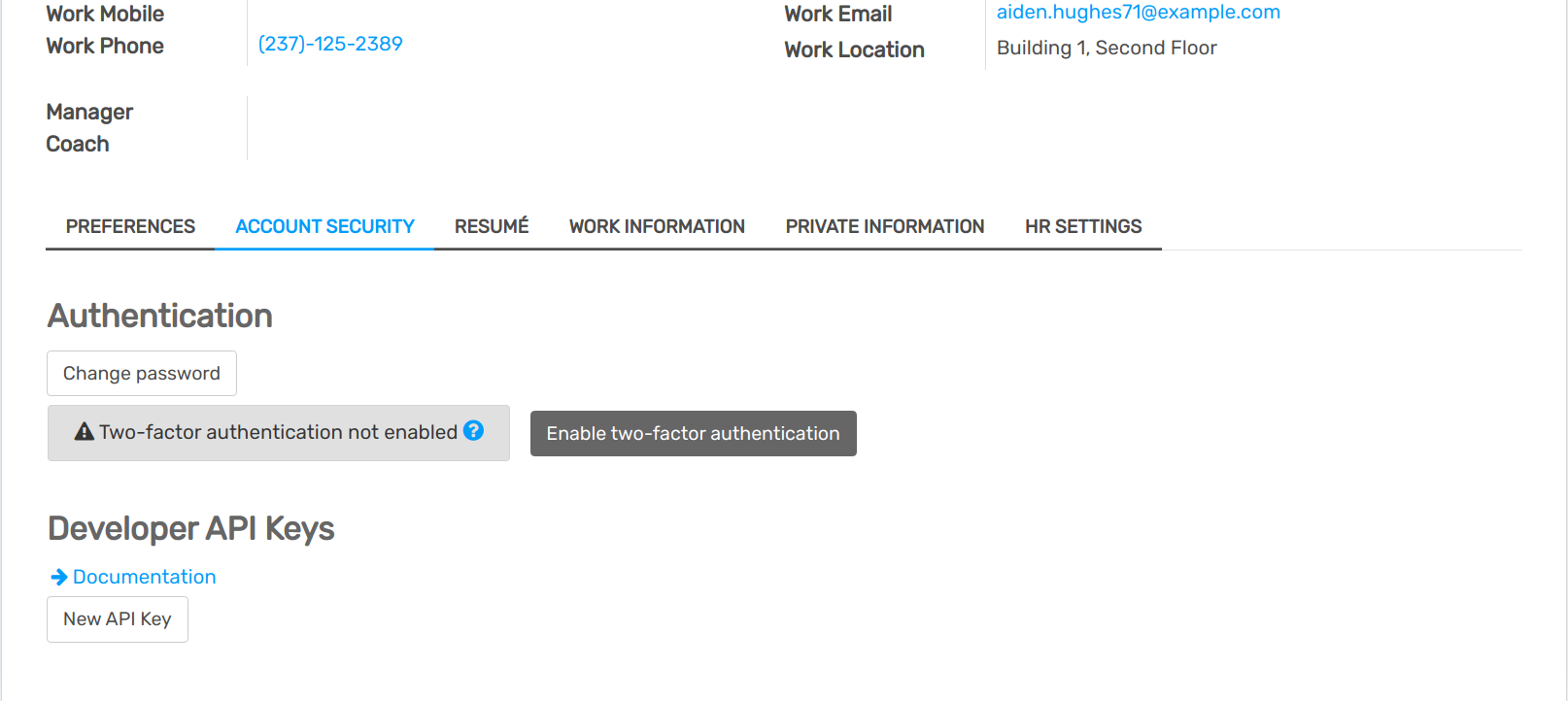
Open the Account Security tab, then click the Enable two-factor authentication button:
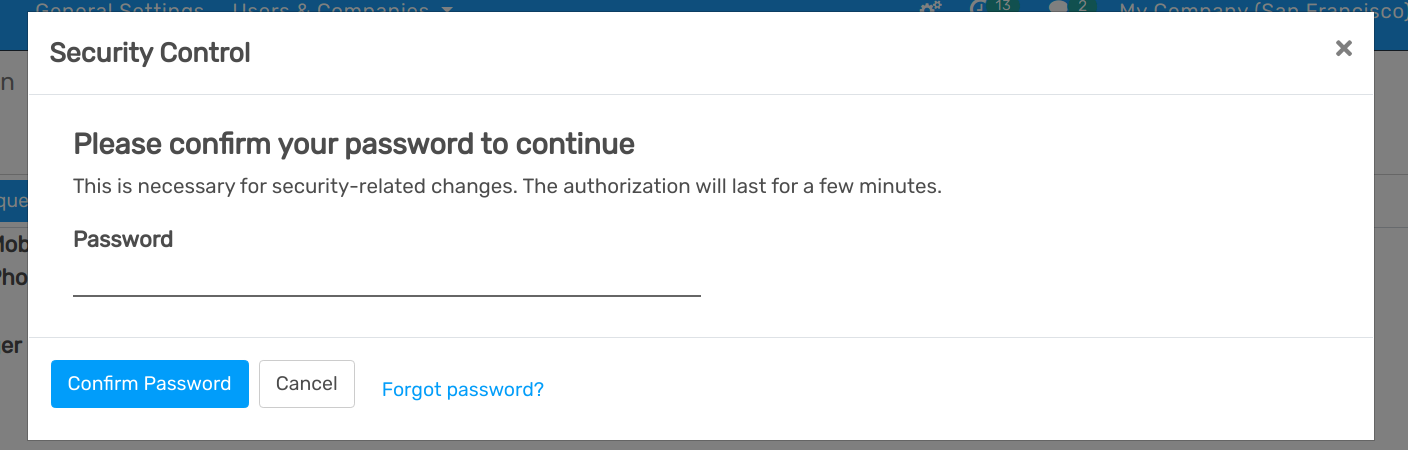
Because this is a security-sensitive action, you will need to input your password:
After which you will see this screen with a barcode:
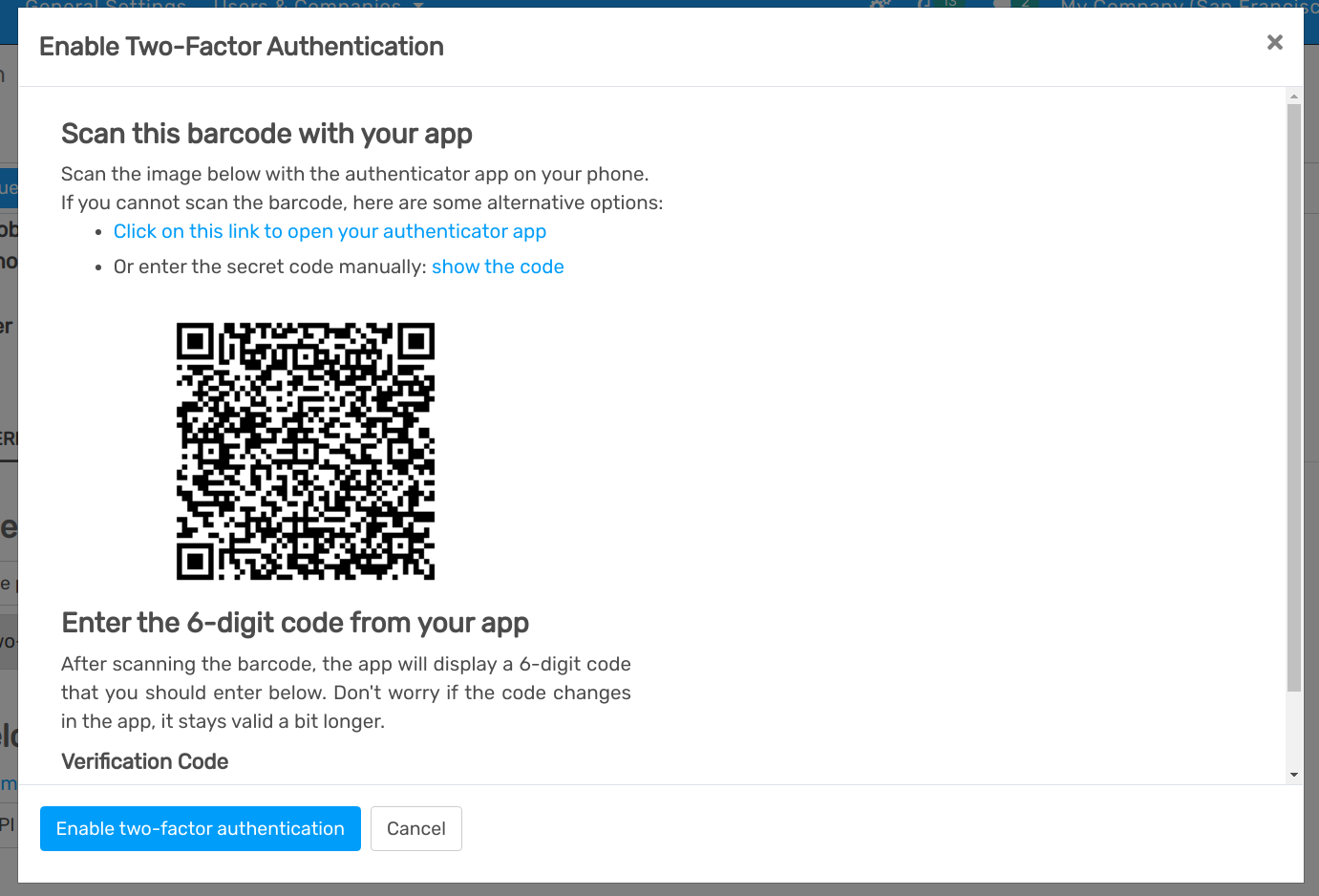
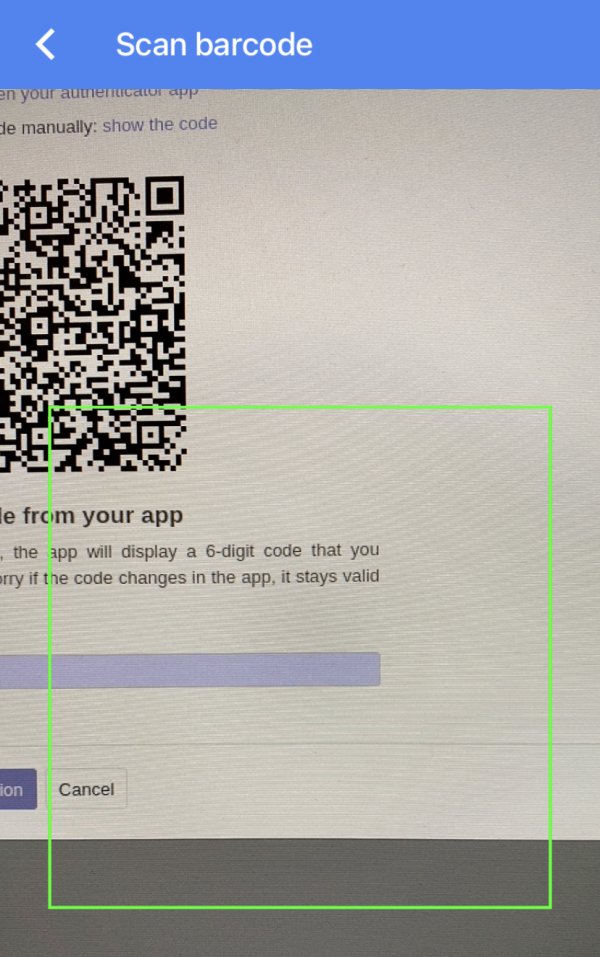
In most applications, you can simply scan the barcode via the authenticator of your choice, the authenticator will then take care of all the setup:
Note
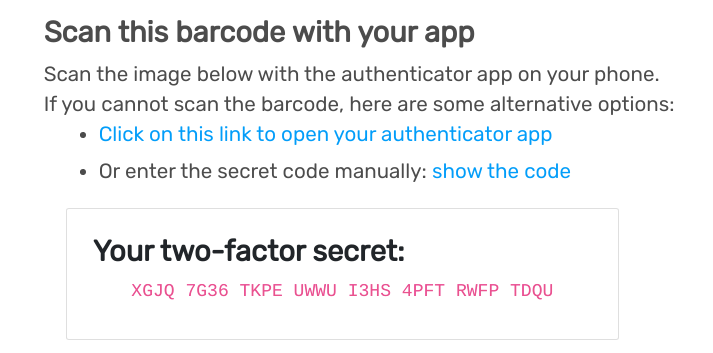
If you can not scan the screen (e.g. because you are doing this set-up on the same phone as the authenticator application), you can click the provided link, or copy the secret to manually set-up your authenticator:
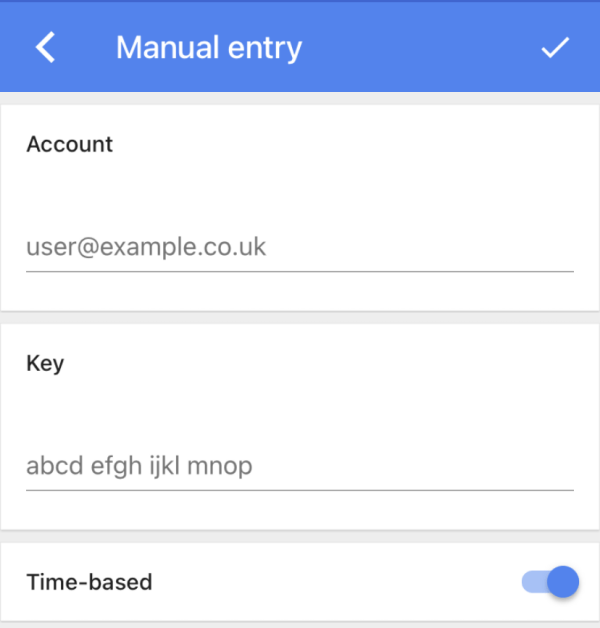
Once this is done, the authenticator should display a verification code with some useful identifying information (e.g. the domain and login for which the code is):
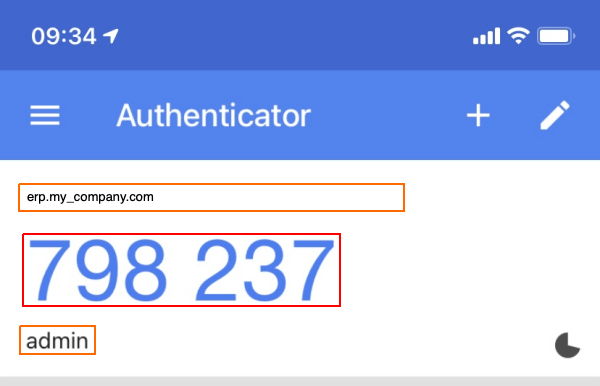
You can now input the code into the Verification Code field, then click the Enable two-factor authentication button.
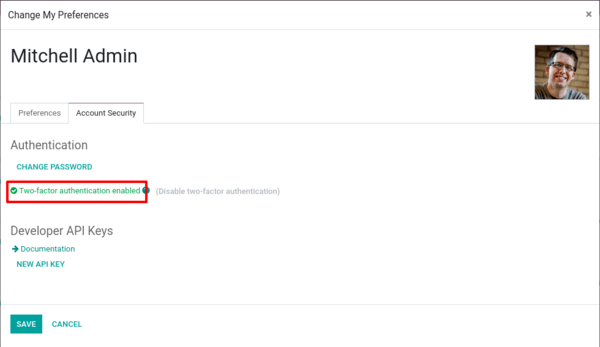
Congratulation, your account is now protected by two-factor authentication!
Logging in
You should now Log out to follow along.
On the login page, input the username and password of the account for which you set up 2FA, rather than immediately enter openAPPone you will now get a second log-in screen:
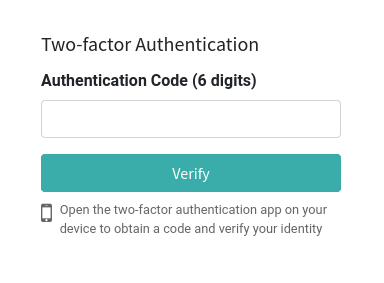
Get your authenticator, input the code it provides for the domain and account, validate, and you’re now in.
And that’s it. From now on, unless you disable 2FA you will have a two-step log-in process rather than the old one-step process.
Danger
Don’t lose your authenticator, if you do, you will need an openAPPone Administrator to disable 2FA on the account.