
Set up your barcode scanner
Getting started with barcode scanning in openAPPone is fairly easy. Yet, a good user experience relies on an appropriate hardware setup. This guide will help you through the task of choosing and configuring the barcode scanner.
Find the barcode scanner that suits your needs
The 3 recommended type of barcode scanners to work with the openAPPone Inventory and Barcode Scanning apps are the USB scanner, the bluetooth scanner and the mobile computer scanner.
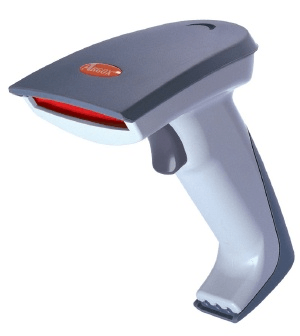
If you scan products at a computer location, the USB scanner is the way to go. Simply plug it in the computer to start scanning. Just make sure when you buy it that the scanner is compatible with your keyboard layout or can be configured to be so.
The bluetooth scanner can be paired with a smartphone or a tablet and is a good choice if you want to be mobile but don’t need a big investment. An approach is to log in openAPPone on you smartphone, pair the bluetooth scanner with the smartphone and work in the warehouse with the possibility to check your smartphone from time to time and use the software ‘manually’.
For heavy use, the mobile computer scanner is the handiest solution. It consists of a small computer with a built-in barcode scanner. This one can turn out to be a very productive solution, however you need to make sure that is is capable of running openAPPone smoothly. The most recent models using Android + Google Chrome or Windows + Internet Explorer Mobile should do the job. However, due to the variety of models and configurations on the market, it is essential to test it first.
Configure your barcode scanner
Keyboard layout
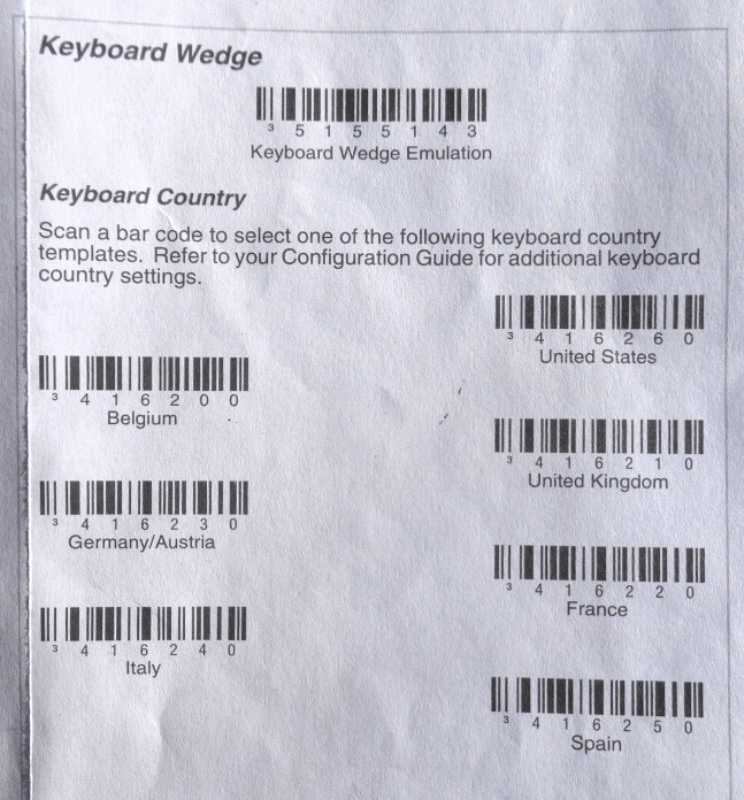
Ein USB-Barcodescanner muss so konfiguriert werden, dass er die gleiche Tastaturbelegung wie Ihr Betriebssystem verwendet. Andernfalls wird Ihr Scanner die Zeichen nicht richtig übersetzen (zum Beispiel ein ‘A’ durch ein ‘Q’ ersetzen). Die meisten Scanner werden durch Scannen des entsprechenden Barcodes im Benutzerhandbuch konfiguriert.
Automatischer Wagenrücklauf
Standardmäßig hat openAPPone eine Verzögerung von 50 Millisekunden zwischen jedem aufeinanderfolgenden Scans (dies hilft, versehentliches doppeltes Scannen zu vermeiden). Wenn Sie diese Verzögerung unterdrücken möchten, können Sie Ihren Scanner so konfigurieren, dass er am Ende jedes Barcodes einen Zeilenumbruch am Ende eines jeden Barcodes einfügen. Dies ist normalerweise die Standard Konfiguration und kann explizit konfiguriert werden, indem Sie einen bestimmten Barcodes im Benutzerhandbuch explizit konfiguriert werden (‘CR-Suffix EIN’, ‘Enter für Suffix anwenden’, usw.).